WordPress Website Slow? Here's How to Fix It
Is your WordPress website slow? Learn how to improve WordPress speed with better hosting, caching, image optimization, plugins, database cleanup and more.
Zonetic Hosting Team
Blogger & SEO Expert
In this article
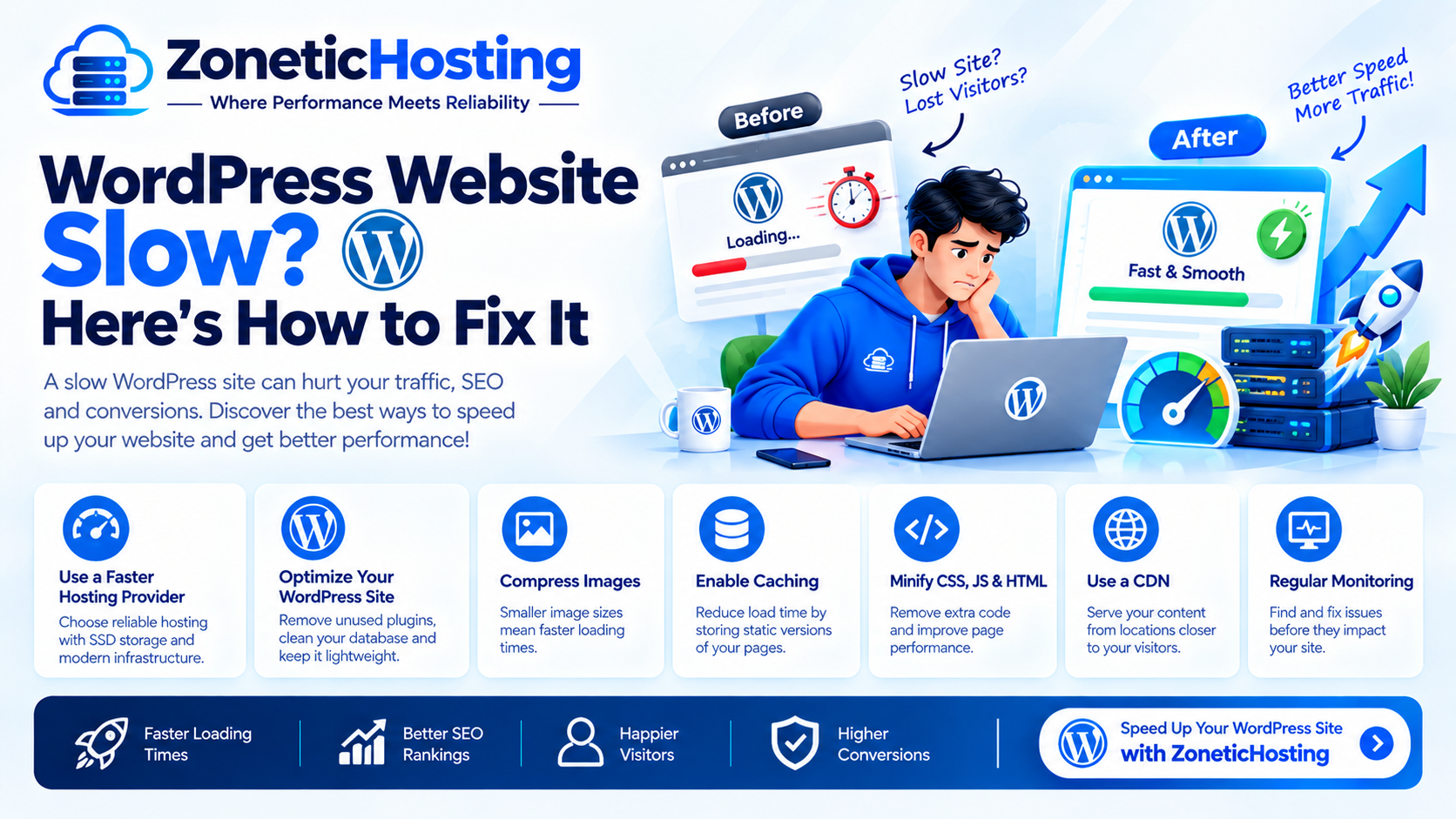
WordPress Website Slow? Here's How to Fix It
Is your WordPress website loading slowly? A slow website can frustrate visitors, reduce conversions, increase bounce rates, and negatively affect your search engine performance.
The good news is that most WordPress speed problems can be fixed without rebuilding your entire website.
In this guide, we will explain the most common reasons why WordPress websites become slow and show you practical ways to improve WordPress performance.
Why Is Your WordPress Website Slow?
There can be several reasons why a WordPress website loads slowly, including:
Slow or overloaded web hosting
Too many plugins
Large and unoptimized images
Poorly optimized themes
No caching
Excessive JavaScript and CSS
Outdated WordPress, themes, or plugins
Database bloat
Too many external scripts
High server resource usage
Poorly configured hosting
Before making changes, test your website speed and identify the areas that need improvement.
1. Choose Fast and Reliable WordPress Hosting
Your hosting provider plays a major role in website performance.
Even a well-optimized WordPress website can be slow if it is hosted on an overloaded server or a hosting plan with insufficient resources.
Look for hosting that offers:
SSD or NVMe storage
Adequate CPU and RAM
Reliable uptime
Modern PHP versions
Server-level caching
Optimized web server configuration
Good database performance
Easy scalability
If your website remains slow after optimization, your hosting environment may be the main problem.
For websites receiving higher traffic, upgrading from basic shared hosting to a more powerful hosting plan or VPS can provide additional resources and better performance.
2. Optimize Your Images
Large images are one of the most common causes of slow WordPress websites.
Uploading a 3 MB or 5 MB image when the website only needs a few hundred kilobytes can significantly increase page load time.
Before uploading images:
Resize images to the required dimensions
Compress images
Use WebP or other modern image formats where appropriate
Avoid uploading unnecessarily large images
Use properly sized thumbnails
For example, if an image is displayed at 800 pixels wide, there is usually no reason to upload a 4000-pixel-wide version.
3. Enable WordPress Caching
Caching allows WordPress to serve previously generated content instead of processing every request from scratch.
A good caching setup can significantly improve page loading speed.
Depending on your hosting environment, caching may include:
Page caching
Browser caching
Object caching
Cache preloading
CSS and JavaScript optimization
GZIP or Brotli compression
Avoid running multiple caching systems that perform the same functions, as they can sometimes conflict with each other.
4. Remove Unnecessary WordPress Plugins
Plugins provide useful functionality, but poorly optimized or unnecessary plugins can increase resource usage.
Review your installed plugins regularly and remove the ones you no longer need.
Pay particular attention to plugins that:
Run frequent background tasks
Load large JavaScript files
Perform database queries on every page
Load resources across the entire website
Duplicate functionality provided by another plugin
The number of plugins isn't the only factor that matters. A website with many well-optimized plugins can still be faster than a website with a few poorly optimized plugins.
5. Use a Lightweight WordPress Theme
Your WordPress theme controls a significant portion of your website's front-end code.
Some themes include large numbers of features, animations, sliders, widgets, and scripts that you may never use.
A lightweight theme can reduce the amount of HTML, CSS, and JavaScript that browsers need to process.
When choosing a WordPress theme, look for:
Clean and optimized code
Responsive design
Minimal unnecessary scripts
Good performance
Regular updates
Compatibility with your WordPress setup
6. Optimize CSS and JavaScript
Large CSS and JavaScript files can slow down the rendering of your website.
Depending on your setup, you can improve performance by:
Minifying CSS and JavaScript
Removing unused CSS
Delaying non-critical JavaScript
Loading scripts only when required
Reducing unnecessary animations
Removing unnecessary third-party scripts
However, be careful with aggressive optimization.
Combining or delaying JavaScript incorrectly can break menus, contact forms, sliders, checkout pages, or other website functionality.
Always test your website after making these changes.
7. Keep WordPress, Themes, and Plugins Updated
Outdated WordPress software can cause performance, compatibility, and security problems.
Regularly update:
WordPress core
WordPress plugins
WordPress themes
PHP, when supported by your website
Before performing major updates, create a recent backup so you can restore your website if something goes wrong.
8. Optimize Your WordPress Database
Over time, your WordPress database can accumulate unnecessary information.
Examples include:
Post revisions
Spam comments
Trashed posts
Expired temporary data
Unused metadata
Old plugin data
A poorly maintained database can increase the amount of work required for certain database queries.
Always create a backup before performing database cleanup and avoid deleting database tables unless you know exactly what they contain.
9. Use a Content Delivery Network
A Content Delivery Network, commonly known as a CDN, can help deliver static website resources from servers located closer to your visitors.
A CDN can be useful for websites with visitors from multiple regions or countries.
Depending on your configuration, a CDN can help deliver:
Images
CSS
JavaScript
Fonts
Static files
If most of your visitors are from India, make sure your main hosting server also provides good connectivity and performance for Indian users.
10. Reduce Third-Party Scripts
Third-party services can add extra loading time to your website.
Common examples include:
Analytics tools
Live chat widgets
Advertising scripts
Social media widgets
Tracking systems
External fonts
Marketing tools
Review the services running on your website and remove anything that isn't necessary.
For important services, consider loading them efficiently so they don't block the main page content.
11. Use a Modern PHP Version
WordPress performance also depends on the PHP version running on your hosting server.
Using a supported and compatible modern PHP version can provide better performance and security than older versions.
Before changing your PHP version, make sure your WordPress theme and plugins support it.
After changing the PHP version, test:
Homepage
WordPress login
Contact forms
WooCommerce
Checkout
Admin dashboard
Important plugins
12. Enable Compression
Compression reduces the amount of data that needs to be transferred between your server and visitors.
Modern web servers can use compression technologies such as GZIP and Brotli.
Compression can reduce the size of resources such as:
HTML
CSS
JavaScript
XML
JSON
Your hosting provider or server administrator can configure compression at the server level.
13. Optimize Your WordPress Homepage
Your homepage is often one of the most important pages on your website.
Avoid unnecessarily loading:
Large video backgrounds
Multiple sliders
Huge image galleries
Excessive animations
Unused widgets
Too many third-party scripts
Keep important content lightweight and load additional resources only when they are required.
14. Check Your Hosting Resource Usage
Sometimes the WordPress website itself isn't the main problem.
If your hosting account frequently reaches its CPU, RAM, or process limits, your website may become slow during traffic spikes.
Check your hosting control panel for resource usage.
If your resources are consistently being exhausted, consider:
Optimizing heavy plugins
Reducing background tasks
Increasing your hosting resources
Upgrading your hosting plan
Moving to VPS hosting
15. Test Your Website After Every Major Change
Don't make multiple major changes at the same time without testing.
A better approach is:
Test your website.
Identify the biggest performance problem.
Make one or two changes.
Test the website again.
Check that all features still work.
Continue optimizing.
This makes it easier to determine which changes actually improved your website speed.
How Fast Should a WordPress Website Be?
There isn't one universal loading time that every WordPress website must achieve.
Your goal should be to provide a fast and smooth experience for real visitors.
Focus on:
Fast server response
Quick loading of important content
Optimized images
Minimal unnecessary scripts
Good Core Web Vitals
Reliable hosting
A fast mobile experience
A website that loads quickly on your own computer may still be slow for visitors using mobile devices or slower internet connections.
Quick WordPress Speed Checklist
If your WordPress website is slow, check the following:
Use reliable hosting
Make sure your hosting plan has enough resources
Optimize images
Use WebP where appropriate
Enable caching
Remove unnecessary plugins
Use a lightweight theme
Optimize CSS and JavaScript
Keep WordPress updated
Keep themes and plugins updated
Use a modern compatible PHP version
Optimize the database
Reduce third-party scripts
Use a CDN when appropriate
Enable compression
Monitor CPU and RAM usage
Test your website regularly
When Should You Upgrade Your WordPress Hosting?
If you have already optimized your WordPress website but it is still slow, your hosting environment may be limiting its performance.
Consider upgrading your hosting when:
Your website receives more traffic
CPU or RAM usage frequently reaches limits
Your website becomes slow during traffic spikes
Your WooCommerce store has many products or orders
You use resource-intensive plugins
You need more control over your server
Your current hosting plan cannot handle your website's workload
For smaller websites, optimized shared hosting may be sufficient.
For websites with higher traffic or heavier workloads, VPS hosting can provide additional CPU, RAM, storage, and server control.
Final Thoughts
A slow WordPress website doesn't always mean you need to rebuild it.
Start with the basics: choose reliable hosting, optimize images, enable caching, remove unnecessary plugins, use a lightweight theme, and keep WordPress updated.
If your website continues to be slow after optimization, check your hosting resource usage and consider moving to a more powerful hosting environment.
The best WordPress performance strategy combines fast hosting, optimized images, efficient website code, caching, security, and regular monitoring.
If you're looking for reliable hosting for your WordPress website, choose a hosting plan that provides enough resources for your current traffic and allows you to scale as your website grows.
Have a question about hosting?
Our team can help you pick the right plan for your website.